Frequently Asked Questions
Answers to common questions about receiving assistance, signing documents, and preparing a photo report
How can I receive assistance?
The process consists of six stages, from submitting a request to completing the project.
- 1
Submit a request
Fill out the form on the website or send a request to [email protected], including a description of your needs and the required documents.
- 2
Verification and clarification
We review the documents, contact you to clarify the details, and help prepare the official request needed to open a project.
- 3
Sign the request
You will receive a link to the prepared document and sign it online using an electronic signature. You do not need to print or send paper documents.
- 4
Project launch
We estimate the cost of the requested assistance and open a project. If funding is available, we proceed with the purchase. Otherwise, we launch a fundraising campaign.
- 5
Purchase and delivery
We select a supplier based on price, quality, and delivery time. After payment, we agree with you on the delivery method and destination.
- 6
Receipt and reporting
After receiving the assistance, you submit a photo report and sign the handover certificate. The project is then considered complete.
How do I sign a document electronically?
You will receive a link to the document. Open it and choose your preferred signing method.
Option 1. SmartID by PrivatBank
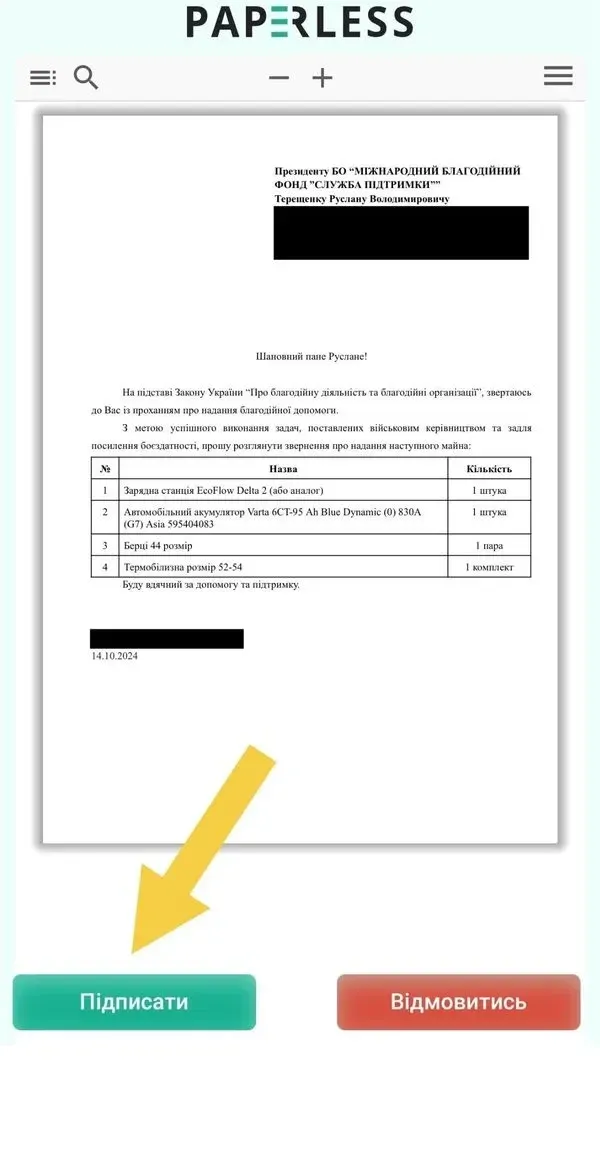
1. Open the link and select “Sign.”
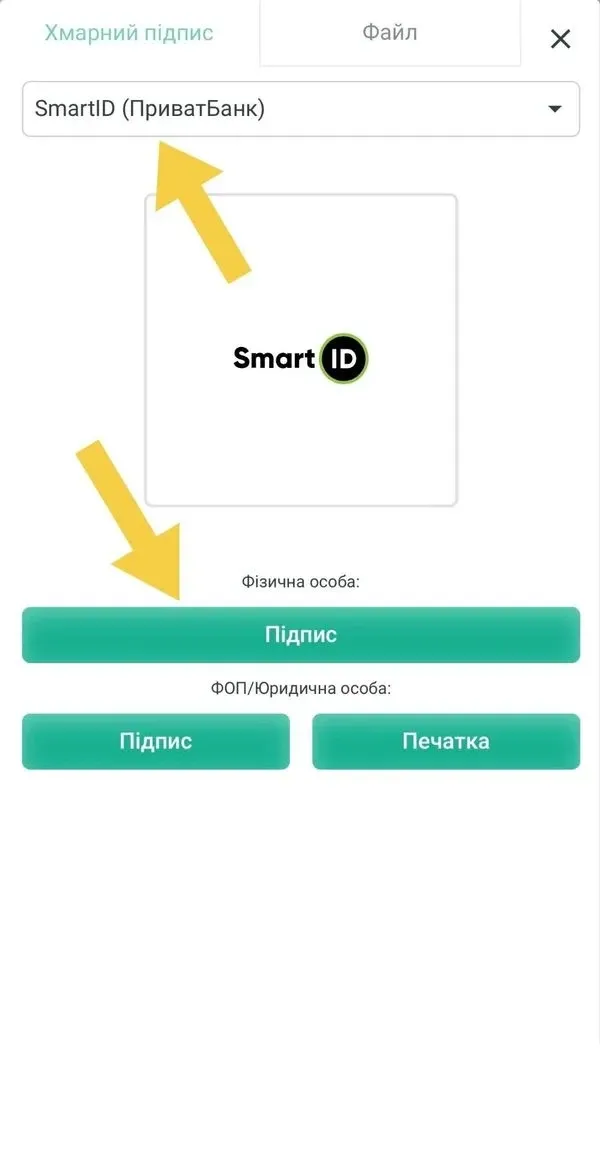
2. Select “SmartID by PrivatBank.”
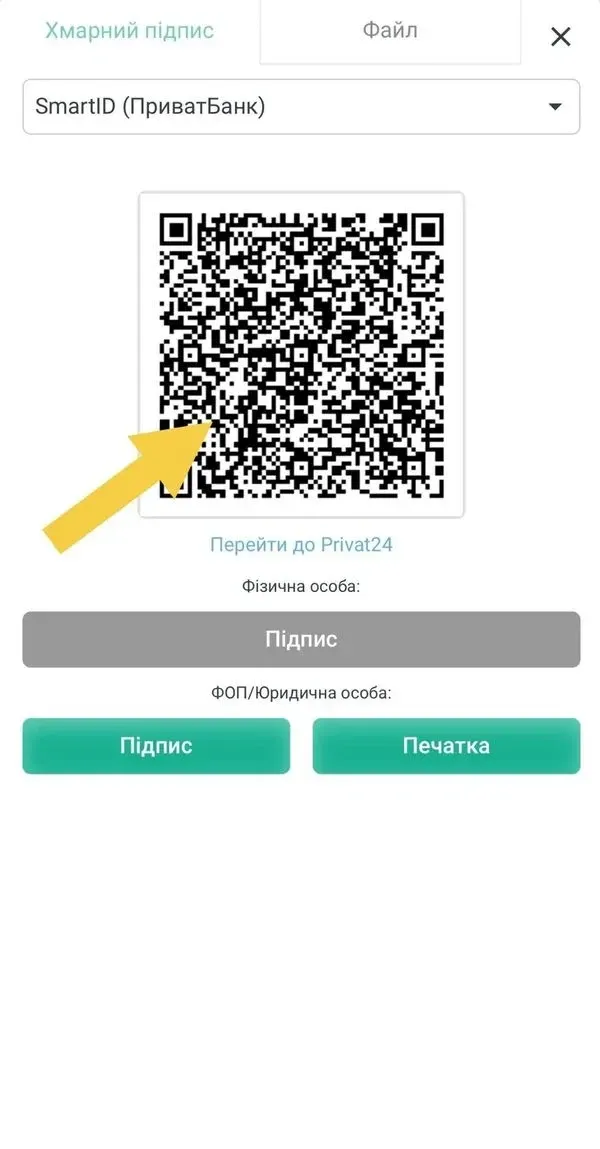
3. Select the QR code.
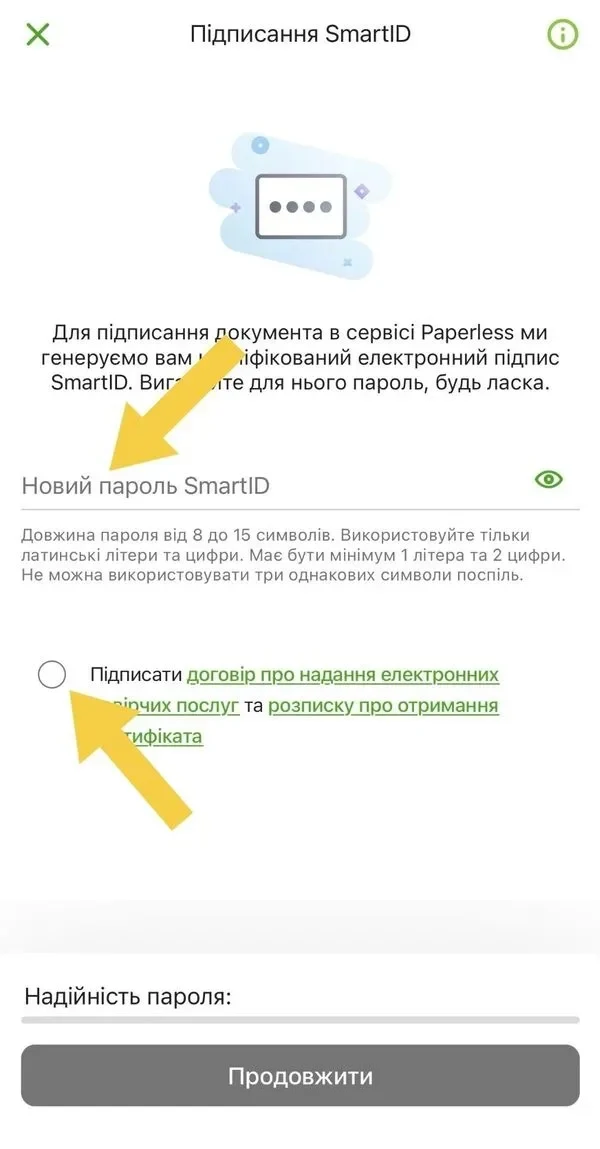
4. Enter your SmartID password.
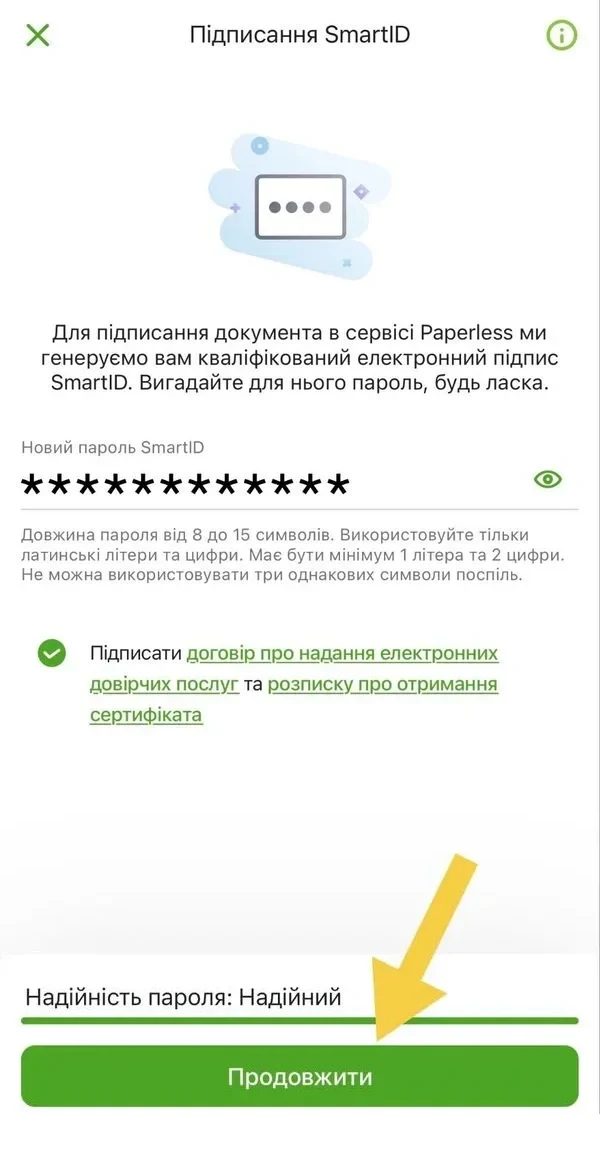
5. Select “Continue.”
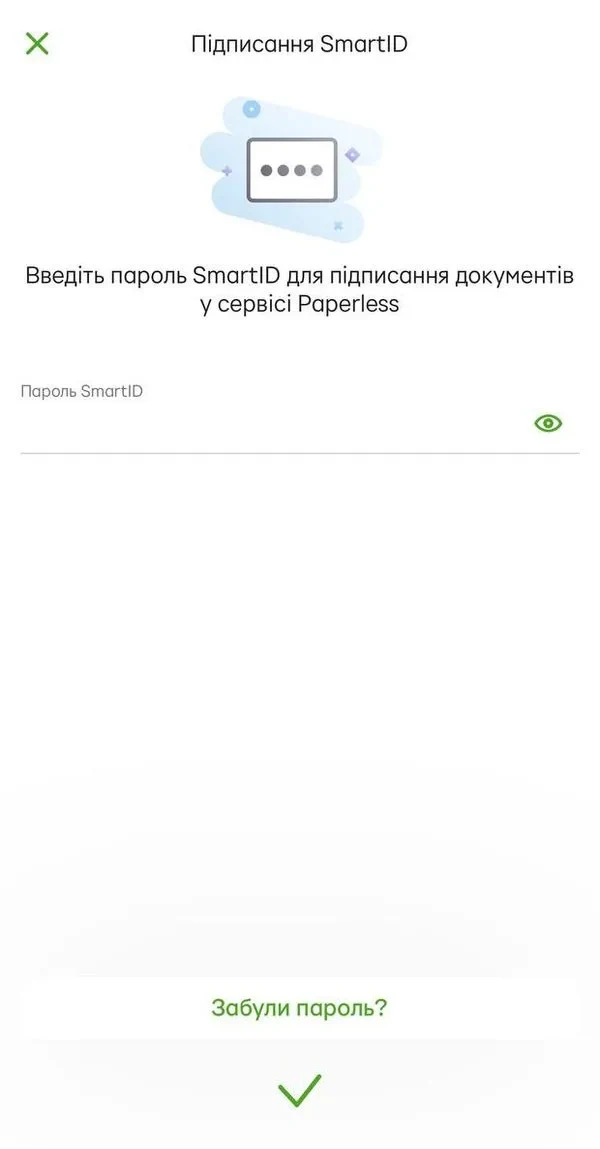
6. The document is signed.
Option 2. Diia Signature
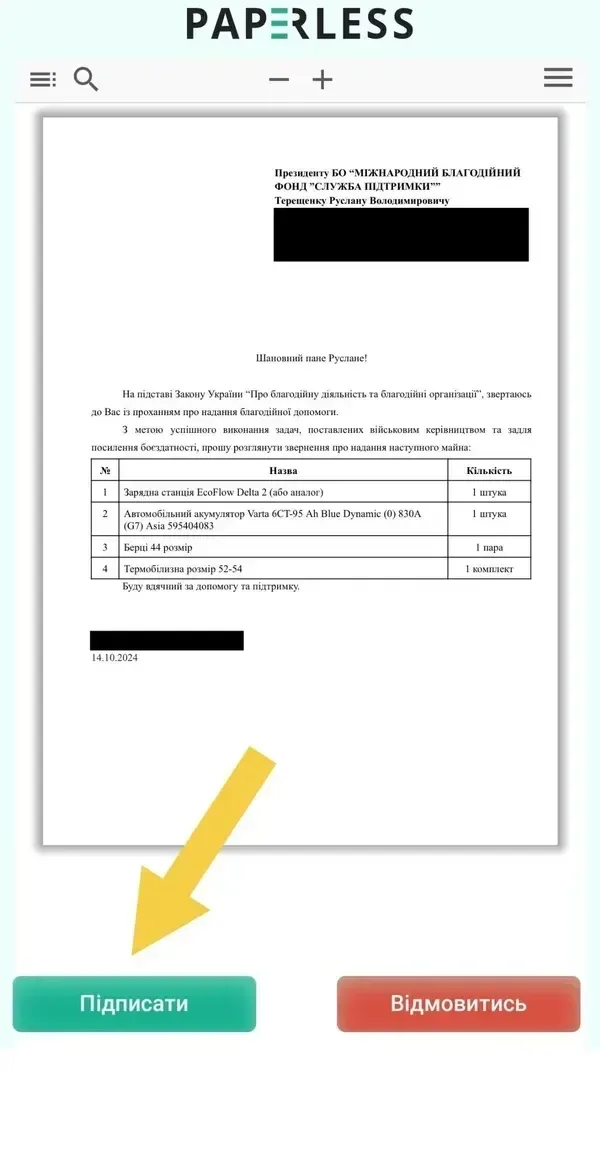
1. Open the link and select “Sign.”
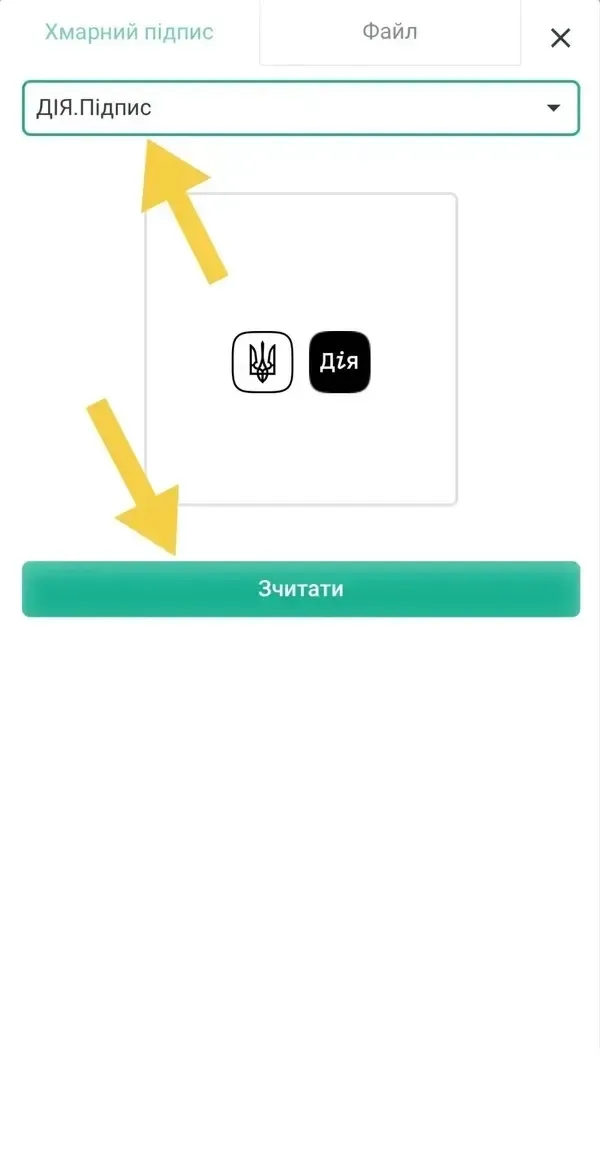
2. Select “Diia Signature,” then “Scan.”
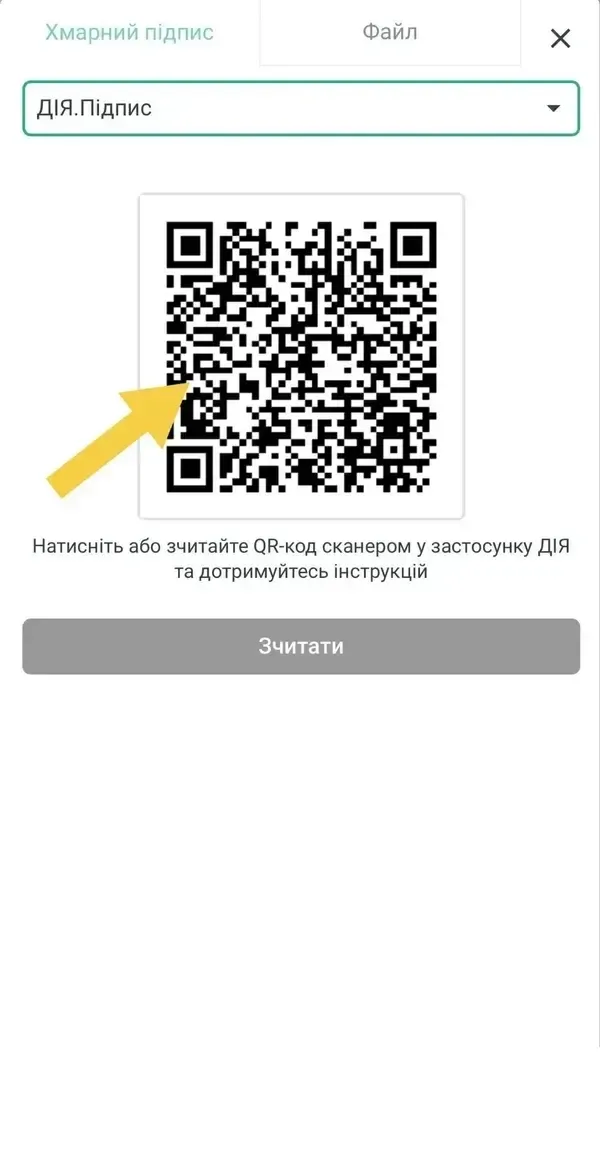
3. Select the QR code.
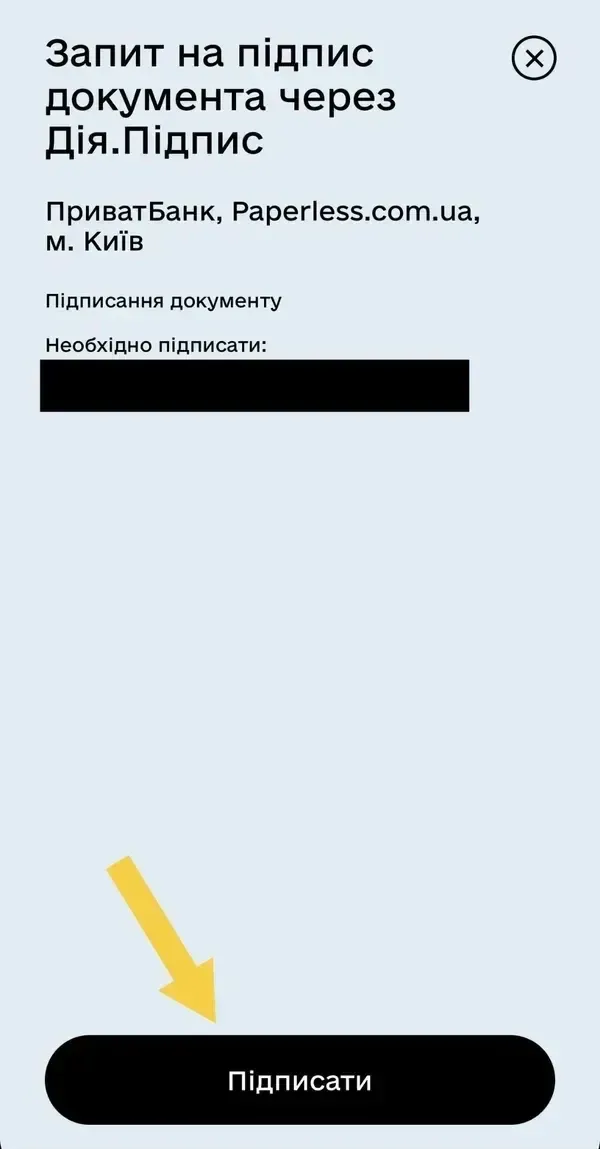
4. Open the Diia app and select “Sign.”

5. Complete the identity verification.
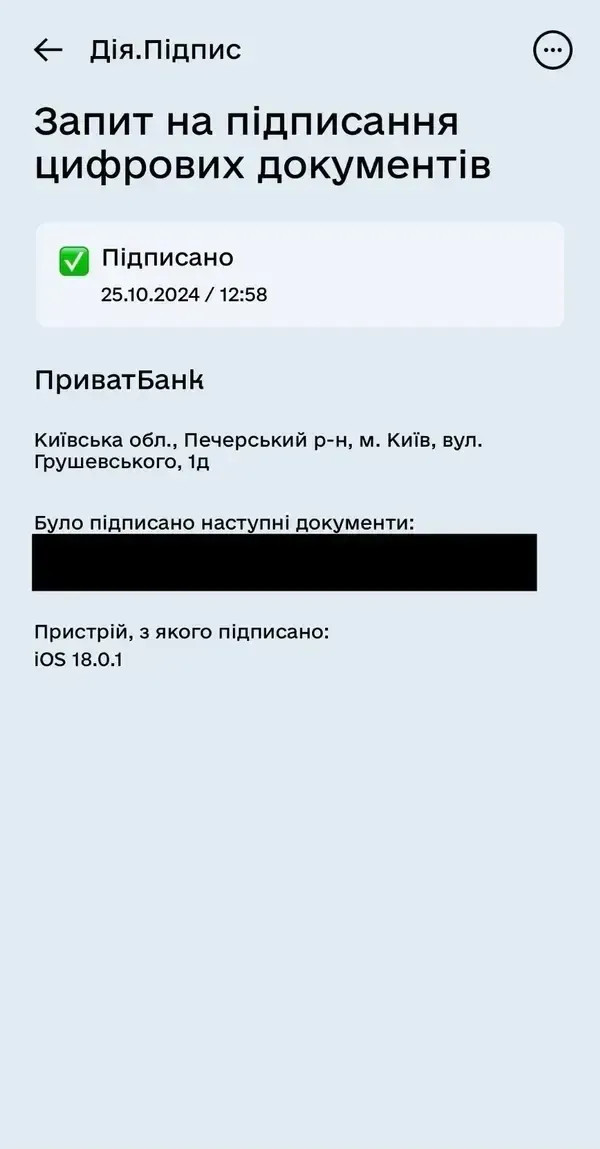
6. The document is signed.
How do I prepare a photo report?
After receiving the assistance, send the photo report through the messenger you use to communicate with the Foundation or by email.
The photo report confirms receipt and proper use of the assistance and allows the Foundation to complete its reporting to donors.
Photo report requirements
- 1
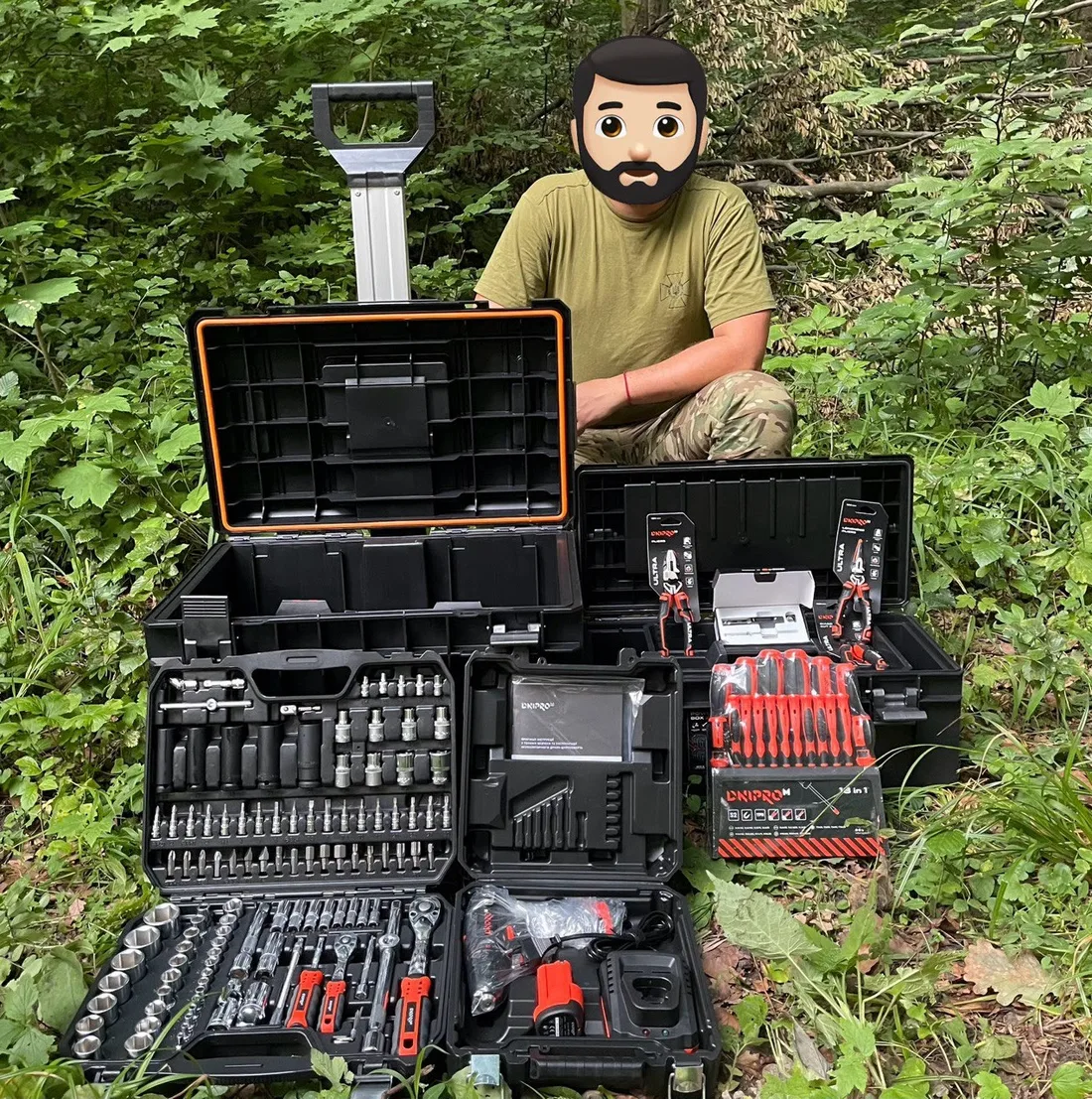
Representative in the photo
The person who signed the request and received the assistance must appear in the photo.
- 2
All items in one photo
Show all received items together so that their type and quantity are clearly visible.
- 3
Visible contents
Remove the packaging and open the cases, but do not open sterile, sealed, or factory packaging.
- 4
Safe background
The photo must not contain documents, maps, vehicle numbers, screens displaying sensitive information, or details that could reveal your location.
- 5
Military uniform
Military personnel are encouraged to take the photo in uniform where it is safe to do so.
- 6
Face
Send the original photo. The Foundation will conceal the face before publication.
Photo report example
Your safety is our priority
- Original photo reports are used for the Foundation’s internal records and reporting.
- Before publication, we conceal faces, personal data, location-related information, and other sensitive details.
- Photos showing an unobscured face are published only with the person’s separate consent.
- Personal data is processed in accordance with the Privacy and Personal Data Processing Policy.